RGB LCD Data Enable Polarity: Debug Cropped, Shifted and Unstable Images
RGB LCD data enable polarity guide: match DE and clock edge to the panel timing, then use border patterns to separate porch from stride errors.
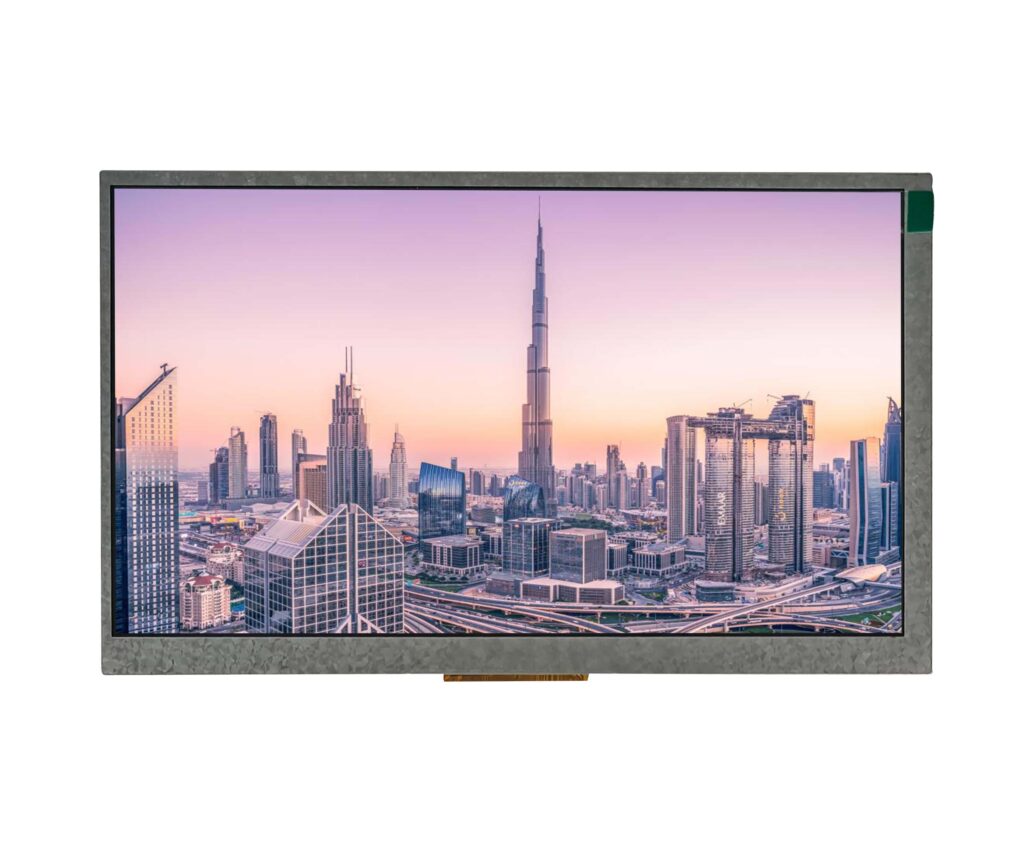
RGB LCD data enable polarity is the first timing setting to verify when an image is shifted or cropped. An RGB panel that is shifted one pixel to the right, cropped at the left edge or unstable at the last column is often a data enable problem, not a panel problem. The timing looks plausible, the image is nearly correct, and the error survives a panel swap. This guide compares the panel timing diagram with the controller registers and the scope, shows how DE polarity and clock edge change the sampled window, and separates a porch error from a memory-stride error.
How should RGB LCD data enable polarity be confirmed?
Confirm DE polarity from the panel timing diagram.
The panel drawing defines whether data enable is active high or low and which clock edge samples data; the register must match that, not a similar panel.
Data enable marks the pixels that are valid on the RGB bus. If its polarity is inverted, the panel treats the blanking period as active and the active period as blanking. The result can be a shifted image, a cropped image, a black border or a display that looks unstable because the sampling window is in the wrong place.
The panel drawing is the authority. It defines the active level, the setup and hold relationship to the pixel clock, and the position of the active window within the line and frame. A register setting that works for a similar panel may be wrong for this one, especially when the panels come from different vendors.
Confirm the polarity by measuring the DE signal at the panel connector and comparing it with the drawing. Then read the controller register and confirm that it matches. If the two disagree, the register or the board is wrong; if they agree but the image is still shifted, the timing values around DE are the next suspect.
Which timing diagram defines the valid pixel window?
The diagram defines active width, porches and sync.
The valid window is the period when DE is asserted; its position is set by the horizontal and vertical porches and sync timing around it.
The valid pixel window is not just the active width. It is the active width placed at a specific position within the total line, after the front porch, sync and back porch. The same active width with different porch values produces a different image position. The vertical timing does the same for the frame.
The panel drawing usually shows the timing as a diagram with the active region, the porches, the sync pulse and the DE signal. The controller register set has equivalent fields: active width, front porch, back porch, sync width and polarity. The values must be translated from the drawing, not copied from a standard mode.
Record the source of each value. A field that comes from a generic 1080p mode rather than the panel drawing is a guess, even if the resolution matches.
When are sync signals ignored by a DE-only panel?
A DE-only panel may ignore HS and VS entirely.
Some panels use DE as the only timing reference and ignore separate sync; a sync polarity error then changes nothing, while a DE error changes the image.
A DE-only panel derives its line and frame timing from the data enable signal. It may still have HS and VS pins, but they can be unused or required to be in a fixed state. In that architecture, changing the sync polarity has no effect on the image, while changing the DE polarity or the porch values moves or crops it.
This is why a sync-polarity experiment can be misleading. If the panel ignores sync, changing it proves nothing about the fault. The DE signal and the active window are the variables that matter. Read the panel drawing to confirm which mode the panel uses before spending time on sync settings.
If the panel uses separate sync, the relationship between sync and DE still matters. The DE window must fall inside the active region defined by the sync timing. A mismatch can produce a shift even when both signals are individually correct.
How does clock edge selection change sampled data?
The sampling edge changes when data is captured.
Sampling on the wrong edge moves the capture by half a clock, which can shift pixels, produce a one-pixel border or destabilize the edges.
The RGB data is sampled by the panel on a clock edge. If the controller drives data on the rising edge and the panel samples on the falling edge, or vice versa, the capture point moves by half a clock period. At high pixel rates, that can be enough to sample the previous or next pixel, producing a one-pixel shift or an unstable edge.
Some controllers let you invert the pixel clock output, which changes the effective sampling edge. Others let you adjust the drive strength or the output delay. The panel drawing defines the required relationship, including setup and hold times. If the relationship is marginal, the image may be correct at room temperature and fail when the panel warms up.
Measure the clock and data at the panel connector, not at the controller. The board and cable add delay, and the panel’s own input capacitance affects the edge. The ST AN4861 LTDC application note documents the controller-side timing and synchronization for specific STM32 families.
Which test pattern exposes a shifted active window?
A one-pixel border and a moving window expose it.
A single-pixel border and a rectangle moving across the screen show whether the active window is shifted, cropped or one pixel short.
A full-screen pattern with a one-pixel border makes a shift visible: if the left border is missing and the right border is doubled, the window is shifted or one pixel wide. A rectangle that moves across the screen shows the same error in motion. A fine vertical line at the edge is easier to see than a large block.
Corner markers help with both horizontal and vertical shifts. Place a small marker in each corner with a known margin from the edge. If one marker is clipped and the opposite one has extra space, the active window is offset. If all markers are clipped equally, the active width may be too large or the panel may be cropping.
Record the pattern and the result. A test that only shows a logo can pass while the window is off by one pixel.
What distinguishes a porch error from a memory-stride error?
Porch errors shift the window; stride errors shear it.
A porch error moves or crops the image uniformly, while a stride error produces diagonal shear or wrap because each line starts at the wrong offset.
A porch error affects the position of the whole image. The active window is placed too early or too late in the line, so the image shifts horizontally, or too early or too late in the frame, so it shifts vertically. The image itself remains rectangular and the lines stay aligned.
A stride error affects the memory addressing. The controller reads each line from an offset that does not match the line length, so each line starts at a different horizontal position. The result is a diagonal shear, a repeated block at the edge or a wrap from one line into the next. The image is not merely shifted; it is structurally wrong.
The distinction matters because the fixes are different. A porch error is a timing-register problem. A stride error is a framebuffer or DMA configuration problem. A test pattern with a vertical edge shows the difference: a porch error shifts the edge, while a stride error makes it diagonal.
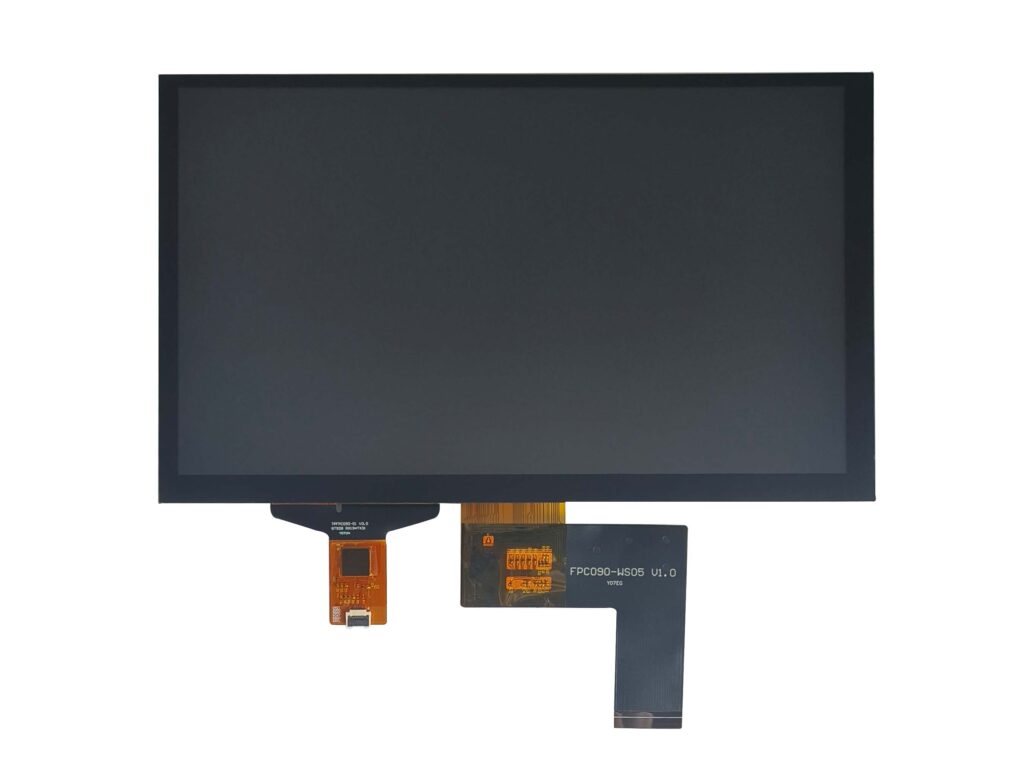
How should register values be compared with scope captures?
Read the registers and compare them with the scope.
Decode the controller’s active width, porch and polarity, then measure the same values at the panel connector; a mismatch shows whether register or board is wrong.
Start with the register values. Decode the active width, horizontal and vertical porches, sync widths, polarity and clock edge settings. Convert them into the same units as the panel drawing: pixels, lines and clock periods. Then measure the same values at the panel connector with a scope or logic analyzer.
If the register and the capture agree but the image is wrong, the panel drawing is the remaining reference. If they disagree, the configuration or the board is wrong. The comparison narrows the fault without guessing.
The DRM KMS documentation describes the pipeline state that the controller configuration belongs to. Record the probe point, the time base and the trigger. A capture taken at the controller may look correct while the panel sees a different signal because of a series resistor, a level shifter or a cable. The measurement belongs at the panel connector.
What timing evidence belongs in the panel approval record?
Record the timing, polarity, register values and captures.
The record should include the panel timing table, controller register values, scope captures at the connector and pattern results for each supported mode.
The approval record should let another engineer reproduce the display timing without re-deriving it from the panel drawing. Include the panel timing table, the controller configuration, the DE and clock polarity, the porch values and the measured captures. Add the pattern results for each supported mode and the conditions under which they were taken.
The Linux device power management documentation covers the resume ordering that determines when those registers are reapplied. If the product has a bootloader and a kernel, record both stages. A handover can leave the panel running on different timing values, and the record should show which stage was measured.
The table below is a template for the timing record. It is not a set of limits; the values come from the panel drawing and the controller datasheet.
| Host or bridge setting | Panel requirement | Cable or pin condition | Diagnostic evidence | Compatibility decision |
|---|---|---|---|---|
| DE polarity | Active high or low per drawing | DE pin at connector | Scope level during active window | Approved if matches |
| Pixel clock edge | Panel sampling edge | Clock pair and data pairs | Setup and hold at connector | Approved if margin exists |
| Horizontal porch | Panel front and back porch | Not applicable | Active window position | Approved if image aligns |
| Vertical porch | Panel line count | Not applicable | Frame position and border | Approved if frame aligns |
| Memory stride | Framebuffer line length | Not applicable | Vertical edge straightness | Approved if no shear |
| Bootloader handover | Same timing as kernel | Same panel and cable | Register read in both stages | Approved if consistent |
The DS90C385A datasheet is an example of a transmitter that documents its parallel-input timing; a bridge such as the SN65DSI83 adds its own input timing and must be included when present. The industrial LCD display category shows the range of panel timings that may be encountered.
FAQ
Can a DE-only panel ignore both horizontal and vertical sync?
Many DE-only panels use data enable as the timing reference and do not require separate sync for normal operation. That does not mean the sync pins are always unused; the panel drawing may still specify a required state or a timing relationship. Follow the drawing rather than assuming that unconnected sync is acceptable.
Will a static centered logo reveal an off-by-one active window?
Not necessarily. A centered logo can look correct even when the active window is shifted by one pixel, because there is no reference at the edge. Use a pattern with a one-pixel border, corner markers or a moving rectangle so a shift or crop appears as a visible asymmetry.
Should bootloader and kernel timing registers be compared independently?
Yes. A bootloader may program a different DE polarity, porch or clock edge than the kernel, and a handover can leave the panel running on the bootloader’s values. Capture the registers and the panel timing in both stages so a change at handover is visible.
If an RGB panel is shifted, cropped or unstable at the edges, send the panel timing table, register values and connector captures to the CDTech engineering team for a timing review.
Related articles
Touch Screen Grounding: Debug Floating and Earth-Referenced Installations SeparatelyCustom Displays, Sourcing & ManufacturingCapacitive Touch Glove Thickness: Validate Material and Fit Before Setting SensitivityCustom Displays, Sourcing & ManufacturingCapacitive Touch Water Rejection: Distinguish Droplets, Films and Flowing WaterCustom Displays, Sourcing & ManufacturingCapacitive Touch Charger Noise: Correlate Raw Data with Power-Supply ConditionsCustom Displays, Sourcing & Manufacturing